How to change WeChat's notification sound on Mac
WeChat gives you an on/off sound toggle on macOS and nothing more, so you cannot choose which sound it plays. To silence it, turn off “Play sound for notifications” for WeChat in System Settings → Notifications. To give it a different sound, or a different sound per channel, person, or keyword, you need a rule-based app such as Chirpy, which reads macOS notifications locally and plays the sound you assigned.
The honest answer: WeChat only gives you basic on/off controls. Your real options are the macOS-level method below, or Chirpy if you want per-notification customization.
In WeChat
Head to Settings → Notifications inside WeChat. The sound options live there, and you can turn them off. That stops WeChat's own audio, but macOS will still play its default sound on top. See the universal approach below to silence that too.
How do I mute WeChat notifications on a Mac?
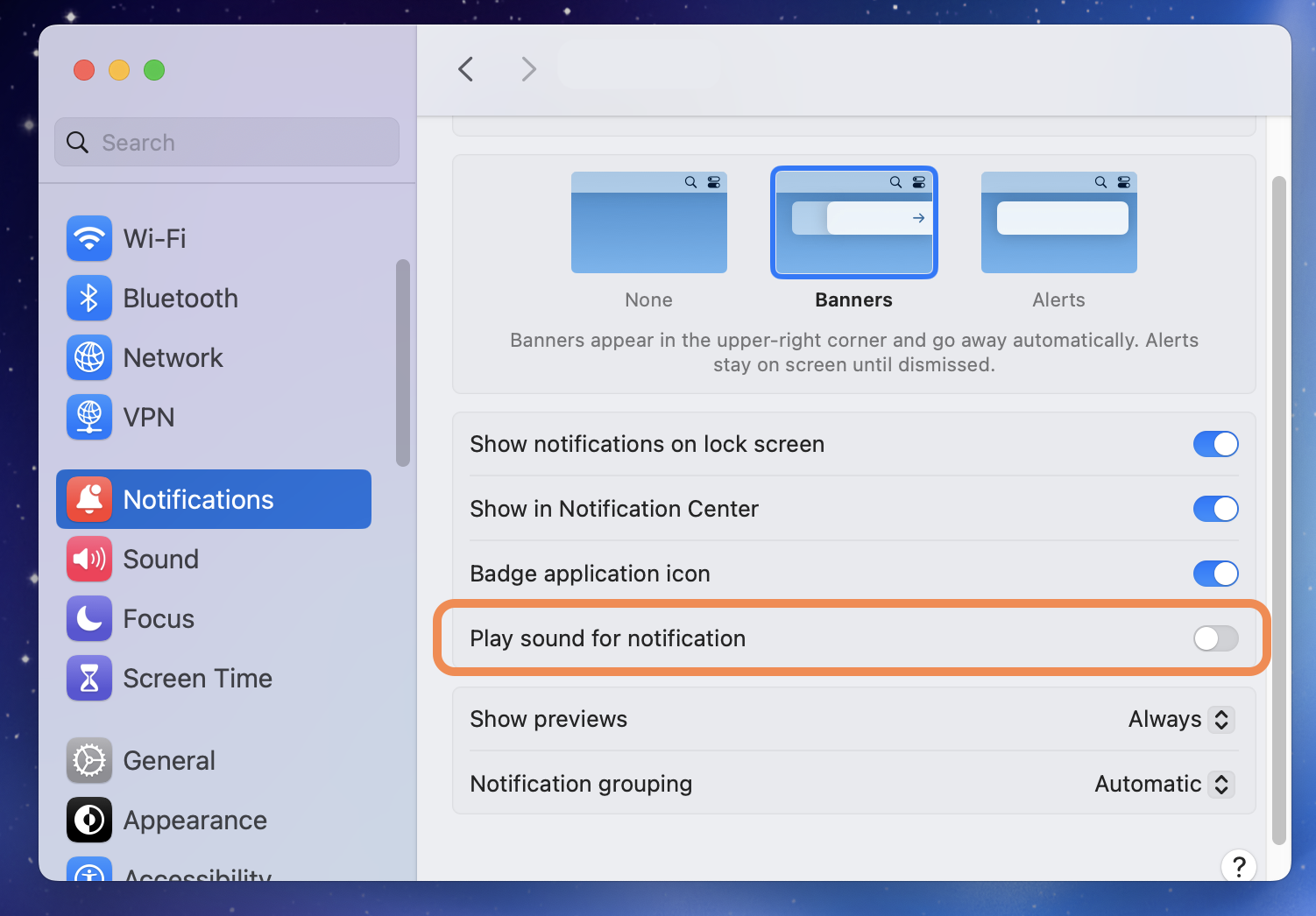
macOS lets you silence any app's sound without disabling its notifications. The full visual walkthrough lives on the universal macOS method page. The short version:
- Open System Settings → Notifications on your Mac.
- Scroll to WeChat in the application list and click it.
- Turn off “Play sound for notifications”.
- WeChat keeps showing banners and badges, with no audio.
How Chirpy fills the gap
With Chirpy you can give WeChat's notifications a sound that matches their importance. For example: a quiet chime for routine updates, a louder bell for mentions, silence for the rest. All triggered by keywords in the notification text, with no plugin and no API access required.
Sorting out more than WeChat? The same method covers every app on your Mac: give each app its own sound.
Frequently asked questions
Can I change WeChat's notification sound on Mac?
Only partly. WeChat gives you basic on/off sound controls, but no way to pick a different sound and no way to vary it by sender or content. To assign a specific sound, mute WeChat at the macOS level and let a rule-based tool such as Chirpy play the sound instead.
How do I mute WeChat notifications on Mac without turning them off?
Open System Settings → Notifications, click WeChat in the list, and turn off “Play sound for notifications”. WeChat keeps showing banners and badges, so you stop hearing it without losing it.
Can I set a different sound for specific WeChat notifications?
Not with macOS or WeChat alone, because neither can read the content of a notification and act on it. Chirpy matches the notification text against rules you write, using a name, a channel, a keyword, or a combination with AND/OR, then plays the sound you assigned to that rule.
Does muting WeChat in System Settings also hide its banners?
No. “Play sound for notifications” only controls audio. Banners, the Notification Center list, and Dock badges are separate toggles on the same screen.
Want sounds that actually mean something?
Chirpy adds rule-based custom sounds on top of macOS notifications. One sound for WeChat mentions, another for your calendar, silence for the rest. It is a native menu bar app. $19.99 as a one-time purchase, requires macOS 13 or later, and runs entirely on your Mac.